Finally, a Website of My Own!
Translated from the original Chinese post. Read the original (中文) →
For years I kept telling old friends I was going to start my own blog, and today I’ve finally done it. For the very first post, let me document the not-so-smooth process of building the site.
Why WordPress
A quick Google search turns up plenty of blogging frameworks, such as WordPress, Hexo, Jekyll, and Hugo. The main reasons I picked WordPress:
- Companies are far more likely to build their websites with WordPress. As a man destined to become a CTO, my tech stack is aimed at enterprises rather than indie developers, so choosing WordPress (along with NGINX, Docker, etc., which I’ll get to later) was only natural.
- WordPress has the biggest ecosystem, so even if I move to another framework someday, there will be plenty of ready-made tools to lean on. Every framework mentioned above ships an official migration tool: Hexo, Jekyll, Hugo.
Building the Site
Buying Cloud Services
There was exactly one reason I went with Azure: I’m broke! The company gives me 150 USD of free credit every month, and it would be a crime not to use it. Personally, I find the Azure Portal reasonably pleasant to use, a tad smoother than AWS’s UX…
After signing up in the Azure Portal and adding your billing info, search for and buy the following resources:
| Resource | Price | How to buy | Docs |
|---|---|---|---|
| Domain (frankzhang.net) | From 11.99 USD per year | Search for “App Service Domains” and buy | Buy a custom domain name – Azure App Service | Microsoft Docs |
| Virtual machine (Azure Ubuntu VM) |
B2S (2 cores, 4 GB) 38.544 USD per month | Search for “Virtual Machines” and buy | Quickstart – Create a Linux VM in the Azure portal – Azure Virtual Machines | Microsoft Docs |
| Database (Azure Database for MySQL servers) |
0 | Are you kidding? Like I could afford a cloud database? 🤣 | MySQL :: A Quick Guide to Using the MySQL APT Repository |
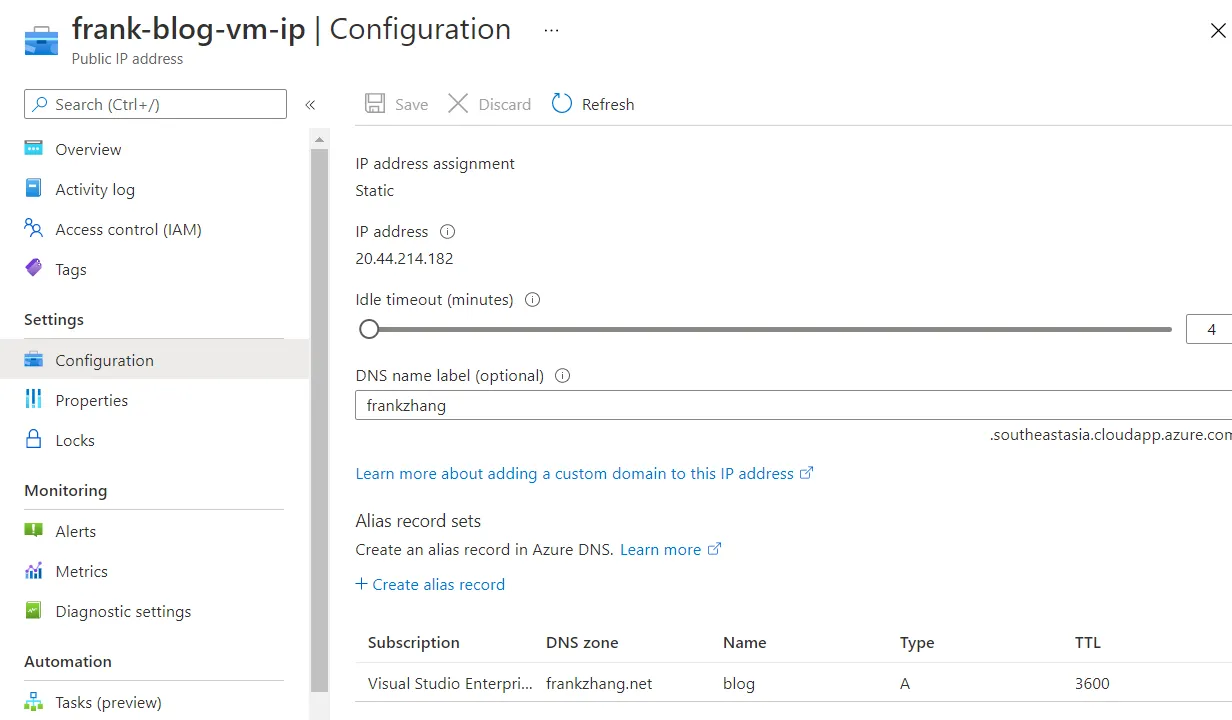
Once you’ve bought these, you need to point the domain at the VM’s IP. In the Azure Portal, just open the VM’s public IP resource and add an alias record (A record) in its configuration. Below, I added blog.frankzhang.net pointing to this IP.
Installing MySQL
As the table above shows, since I can’t afford a cloud database, I had to install MySQL on the Azure VM myself, following the official docs. The Azure Ubuntu VM seems to already include MySQL’s apt repository, though, so two commands do the trick:
sudo apt update
sudo apt install mysql-server
By default, MySQL only listens on port 3306 on localhost; the command below makes it accept connections from any source, not just localhost. Don’t worry: the cloud network settings only open port 22 by default. We’ll open ports 80 and 443 later, but either way, port 3306 will never be reachable from the internet. This step had me stuck for ages. Because my WordPress runs inside a Docker container, the later installation kept showing “Error establishing a database connection”. I went from suspecting a wrong MySQL password to suspecting Azure’s internal network settings, before finally discovering the culprit was MySQL’s default “bind_address” setting.
echo 'bind-address = 0.0.0.0' | sudo tee -a /etc/mysql/mysql.conf.d/mysqld.cnf
sudo systemctl restart mysql
I chose to install MySQL directly on the host rather than in Docker because, in a company, we’d buy a cloud database (RDS), where the architecture has one or more remote/internal database servers, and installing MySQL directly on the host mimics that network setup. (Haha, OK, I’ll stop showing off. Really, it’s because this is the simplest option and closer to how companies actually do it; I’ve never heard of anyone running production MySQL from a Docker image. Also, a friend recently told me a horror story: he habitually cleans up with docker’s delete commands and accidentally wiped out his data volume too…)
I’ve skipped the steps for creating the database and a dedicated WordPress user here; use your imagination.
Installing Docker
It’s 2021. Whose servers don’t have Docker installed? (OK, fine, Microsoft’s Windows servers really don’t use Docker…)
Once again, follow the official docs, run a few commands, and you’re done:
# Set up repository, can be ignored in cloud ubuntu vm.
sudo apt update
sudo apt install apt-transport-https ca-certificates gnupg lsb-release
curl -fsSL https://download.docker.com/linux/ubuntu/gpg | sudo gpg --dearmor -o /usr/share/keyrings/docker-archive-keyring.gpg
echo \
  "deb [arch=amd64 signed-by=/usr/share/keyrings/docker-archive-keyring.gpg] https://download.docker.com/linux/ubuntu \
  $(lsb_release -cs) stable" | sudo tee /etc/apt/sources.list.d/docker.list > /dev/null

# Install Docker Engine
sudo apt update
sudo apt install docker-ce docker-ce-cli containerd.io
Installing WordPress
The installation method in the official docs requires PHP to be installed on the server first. Since I’ve never understood why PHP is “the best language in the world,” I kept a respectful distance and let Docker isolate me from this technology I know little about. Fortunately, the WordPress Community maintains the WordPress Docker Images (that’s the perk of choosing tools with a big ecosystem), so things got very simple.
cd /var/www/blog.frankzhang.net
docker pull wordpress
docker run -e WORDPRESS_DB_HOST=<host_ip>:3306 -e WORDPRESS_DB_USER=<username> -e WORDPRESS_DB_PASSWORD=<password> --name wordpress -p 8181:80 -v "$PWD/html":/var/www/html -d wordpress
A quick explanation of the parameters above:
- –name: gives the container a name.
- -p: sets up port mapping in the format host port:container port. Later I’ll use NGINX as a reverse proxy to this host port.
- -v: mounts a host volume into the container. This way, even if the WordPress Docker container / image gets deleted, the files still live on the host. The /var/www/html directory in the WordPress Docker container holds WordPress’s PHP code, themes and configuration, plus media files like images and videos.
- -d: runs the container in the background.
- The -e environment variables are all documented in detail on the Docker Hub WordPress Image page, so I won’t repeat them here.
At this point, our WordPress is reachable from the internal network: curl localhost:8181 should return the WordPress HTML page.
Installing NGINX
As for whether NGINX should run in a Docker container, for now my answer is no, for a few reasons:
- NGINX doesn’t change / get upgraded nearly as often as applications do
- Installing NGINX itself is dead simple (apt install nginx)
- I want to use Certbot to auto-renew SSL certificates, which is awkward to do with a container.
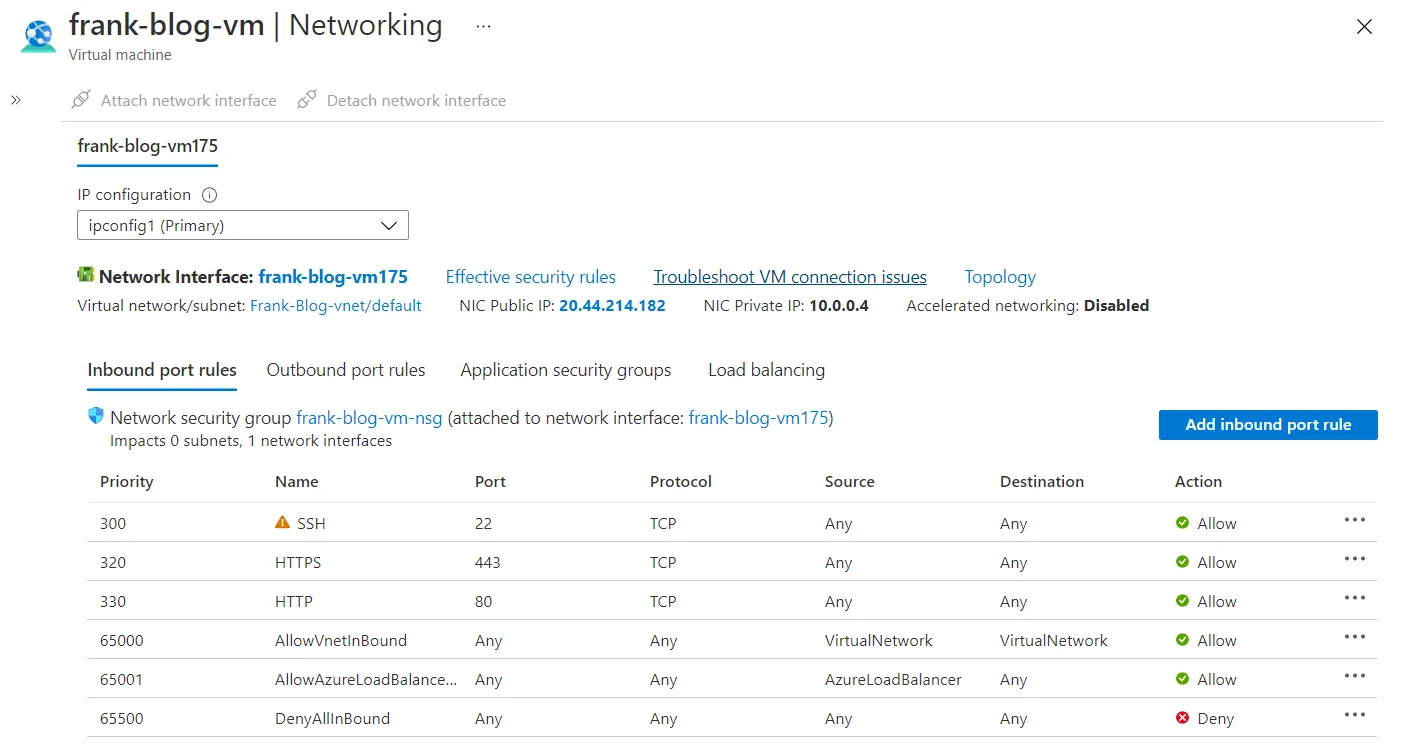
As usual: official docs, though this time I followed this tutorial. After installing NGINX, remember to go to the Azure Portal and update the network settings to allow internet traffic on ports 80 and 443, like this:
Now you can write the NGINX config file: sudo vi /etc/nginx/sites-available/blog.frankzhang.net and fill in the config below. Afterwards, remember to create a symlink to it in the /etc/nginx/sites-enabled directory.
server {
    listen 80;
    server_name blog.frankzhang.net;
    return 301 https://blog.frankzhang.net$request_uri; # Redirect all HTTP requests to HTTPS
}
server {
    listen 443 ssl http2;
    server_name blog.frankzhang.net;

    ssl_session_timeout 5m;
    ssl_protocols TLSv1.2 TLSv1.3;
    ssl_ciphers ECDHE-RSA-AES256-GCM-SHA512:DHE-RSA-AES256-GCM-SHA512:ECDHE-RSA-AES256-GCM-SHA384:DHE-RSA-AES256-GCM-SHA384:ECDHE-RSA-AES256-SHA384;
    ssl_prefer_server_ciphers on;
    ssl_session_cache shared:SSL:10m;

    location / {
        proxy_pass http://localhost:8181;
        proxy_set_header Host $host;
        proxy_set_header X-Real-IP $remote_addr;
        proxy_set_header X-Forwarded-For $proxy_add_x_forwarded_for;
        proxy_set_header X-Forwarded-Proto https;
    }
}
The whole config really boils down to one thing: forward requests on port 443 to localhost:8181. Running WordPress in Docker is a lifesaver; otherwise I’d have to configure PHP FastCGI or whatever it is, which I don’t really understand.
The last step is installing an SSL certificate. As an individual, let’s save some money and use the free Certbot (Let’s Encrypt). The commands are super simple too:
sudo apt install certbot
sudo certbot --nginx
Then just follow its prompts. Once it’s installed, if you enabled auto-renew, Certbot drops a script into /etc/cron.d that tries to renew every 12 hours.
Initializing WordPress
The first time you visit https://blog.frankzhang.net, WordPress shows a setup page. Just keep clicking Next as instructed, and you’re all set!
Wrapping Up
A few pitfalls I ran into along the way:
- By default, MySQL only listens on port 3306 on localhost, so it isn’t reachable via the internal IP.
- Tons of WordPress + NGINX tutorials online walk you through FastCGI configuration in NGINX, which had my head spinning. Actually, since we’re using the default WordPress Docker image, it already uses an Apache server internally to host PHP and serve HTTP, so all you need to do is blindly forward HTTP requests.
Comments
No comments yet — be the first to leave one.